
Background music does more work in a YouTube video than most creators realise. It sets the mood before you say a word, hides the small gaps and breaths in a voice-over, and keeps people watching through the slow parts. It is also the part of a video most likely to get you a copyright claim, a muted clip or a lost payout.
This guide covers how to choose, make and mix background music for YouTube videos so that it helps the video, plus the rules on copyright and Content ID you need to know before you upload.
How to make background music for a YouTube video, in short
- Decide the job of the music: energy for a vlog, calm for a tutorial, tension for a story.
- Pick music you have the rights to: your own, a royalty-free library, or an AI track with a license for commercial use.
- Match the tempo to the edit: faster cuts want a faster beat.
- Keep it instrumental under talking, or the lyrics fight your words.
- Mix it low: roughly 15 to 25 dB under the voice, and lower again while you speak.
- Fade in and out at scene changes instead of cutting the music off.
- Keep proof of where the music came from, in case YouTube shows a claim.
What background music is for
Before you look for a track, decide what the music has to do. Most YouTube videos need one of four things:
- Energy. Vlogs, travel, unboxings and challenge videos. Upbeat pop, funk, house or hip-hop beats at 100 to 125 BPM.
- Focus. Tutorials, study videos, explainers and reviews. Lo-fi, soft piano, ambient electronic. Steady, with no big changes that pull attention.
- Emotion. Stories, documentaries, tributes and wedding films. Piano, strings, acoustic guitar, slow builds.
- Tension or comedy. Gaming, true crime, sketches. Pulsing synths, plucked strings, short stings on the punchlines.
A track that is "good music" can still be wrong for the video. A great song with a busy melody pulls the ear away from you. The best background music is often a little boring on its own.
Where to get background music you are allowed to use
Using a song you bought, streamed or downloaded is not the same as having the right to put it in a video. YouTube's Content ID matches audio against a huge library of commercial recordings, and a match can mean the owner earns the ads on your video, your video is muted, or it is blocked in some countries.
Your safe options are:
- The YouTube Audio Library. Free inside YouTube Studio. Fine for a start, but thousands of channels use the same tracks.
- Royalty-free music libraries. Paid subscriptions with a license that covers YouTube. Read the license: some cover only one channel, or only while you keep paying.
- Music you make yourself, in a DAW or a free beat maker. Nobody can claim it, and nobody else has it.
- AI-generated background music with a commercial license. You describe the mood or give the tool your video, and it composes a new instrumental for it. Check that the tool's terms give you commercial use, because not all of them do.
How to make background music with AI
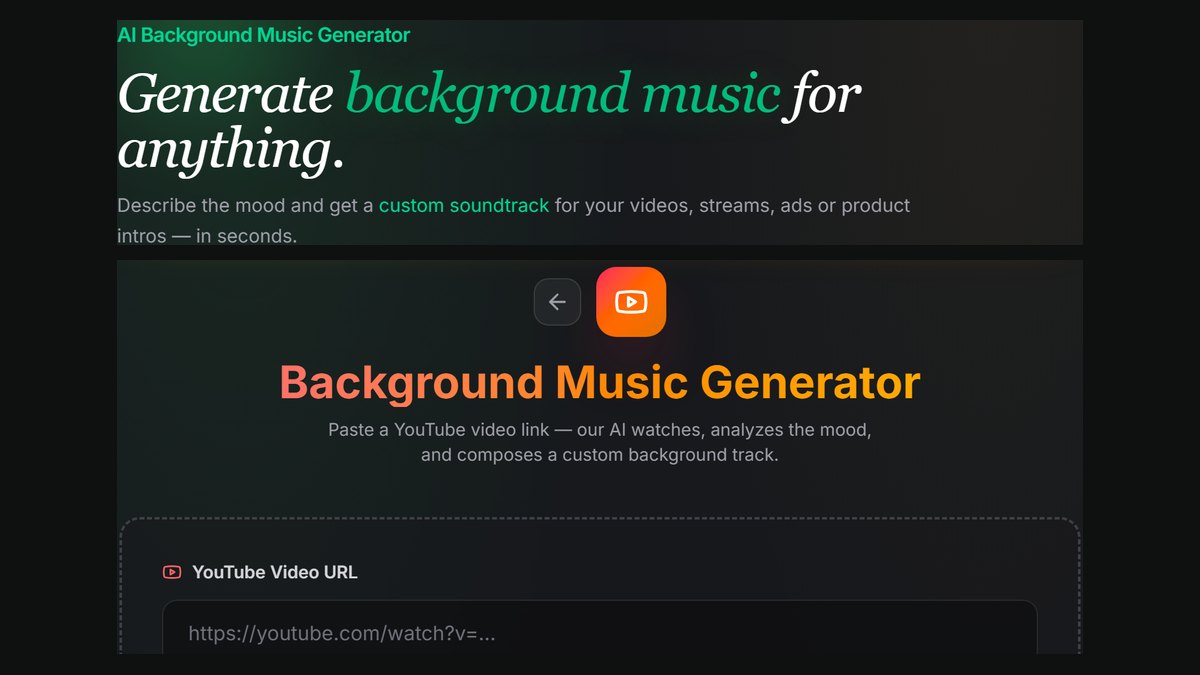
The SongUp AI Background Music Generator is built for this job. You paste the link to your YouTube video. The AI watches it, reads its mood, pace and subject, and composes a 45-second instrumental that fits. It uses song credits, and the tracks are yours to use in your videos.
- Upload your video to YouTube first, as unlisted if it isn't ready yet, and copy its link.
- Paste the link into the Background Music Generator.
- Listen to the result against the video. If the feel is wrong, run it again; each run composes a new track.
- Download it and drop it into your editor under the voice track.
For a full song with vocals instead, such as an intro theme or a channel jingle, use the AI song generator and describe the style, or see our guide on how to make a jingle.
Prompts that work
When a tool asks you to describe the music, be specific about genre, instruments and mood. Compare:
- Weak: "happy music"
- Strong: "light acoustic pop, ukulele and hand claps, 110 BPM, sunny and carefree, no vocals"
- Strong: "slow lo-fi hip-hop, warm electric piano, soft vinyl crackle, relaxed, for a study video"
- Strong: "dark synthwave, pulsing bass, steady drums, tense, for a true crime story"
Matching music to the edit
The music should feel like it belongs to the pictures. Three simple habits get you most of the way:
- Cut on the beat. Put your cuts on strong beats, especially in fast montages. Most editors show the waveform, so the beats are easy to see.
- Match tempo to pace. A talking-head tutorial wants 70 to 90 BPM. A travel montage can take 120 or more. If you don't know a track's tempo, the free key and BPM finder tells you in seconds.
- Change the music when the video changes. A new section, location or mood is a good place for a new track or a fade to silence. One loop under a 20-minute video gets tiring.
How loud background music should be
This is where most videos go wrong: the music is too loud and the voice gets lost, especially on phone speakers.
- Keep the music about 15 to 25 dB below the voice while someone is talking.
- Duck it (lower it automatically) under speech and let it come back up in the pauses. Most editors have an auto-ducking setting; the free Smart Auto-Mix does it for a vocal over a beat.
- Check on a phone. Most YouTube viewing happens on phones, and their small speakers barely play bass. If the voice is clear on a phone, it will be clear everywhere.
- Export at a sensible loudness. YouTube turns down videos that are louder than about -14 LUFS, so making the mix louder than that gains nothing. The free loudness meter shows where you are.
If your voice recording has hum, hiss or room noise, music won't hide it. Clean it first with the free noise remover.
Copyright, Content ID and claims
- "No copyright intended" in a description does nothing. Neither does crediting the artist. What matters is whether you have a license.
- Fair use is a narrow legal defence decided case by case in the US, not a rule that lets you use a few seconds of any song.
- Royalty-free does not mean free. It means you pay once (or subscribe) instead of paying per use.
- Keep your receipts. Save the license, the download page or your account history for every track. If a claim appears on music you have the rights to, you can dispute it in YouTube Studio with that proof.
- AI music and ownership: read the tool's terms. On SongUp AI, songs made on a paid plan or bought individually come with commercial rights and a certificate of ownership you can show; see AI music copyright and commercial use for how this works in the US and EU.
Common mistakes
- Using a popular song because it's "only in the background".
- Music with lyrics under a voice-over.
- One track looping for the whole video.
- Music louder than the voice on phone speakers.
- Music that starts or stops with a hard cut in the middle of a scene.
Frequently asked questions
Can I use any song as background music on YouTube?
No. A commercial song usually triggers Content ID, and the owner can take the ad money, mute the video or block it. Use music you made, music from a library whose license covers YouTube, or AI music whose terms give you commercial use.
What is the best background music for YouTube videos?
The best track is the one that suits the video and doesn't compete with the voice: usually an instrumental with a steady rhythm. Lo-fi and soft piano suit tutorials, upbeat pop and house suit vlogs, and piano and strings suit stories.
How loud should background music be in a video?
About 15 to 25 dB under the voice while someone talks, and a little louder when nobody does. Always check the mix on a phone.
Can AI make background music for my YouTube video?
Yes. The SongUp AI Background Music Generator takes the link to your YouTube video, reads its mood and pace, and composes a 45-second instrumental for it. You can also describe a style to the AI song generator to get a longer track.
Will AI background music get a copyright claim?
A newly composed track isn't in Content ID's library of commercial recordings, so it shouldn't match. If a claim does appear, dispute it with your license or ownership certificate.