
Want to sing karaoke to a song that has no karaoke version, or practice your cover over the real band? Maybe you need the instrumental for a video, or the vocals alone for a remix. Either way, you need to remove the vocals from a song. Five years ago that meant a muddy, half-working trick in an audio editor. Today an AI vocal remover can split a finished song into clean vocals and a clean instrumental in a few minutes, for free, on an ordinary laptop or phone.
This guide shows you how, step by step: how to remove vocals, how to make an instrumental or a karaoke track, how to isolate the vocals (an acapella), and how to split a song into every stem. It also covers the old methods (Audacity and phase inversion) and why they fall short. You'll learn how AI vocal removers actually work, how to get the cleanest result, and what you can and can't do legally with the files.
We build SongUp AI, and its vocal remover tools run inside your browser, so we'll use them for the walkthrough. Every method here works without them too.
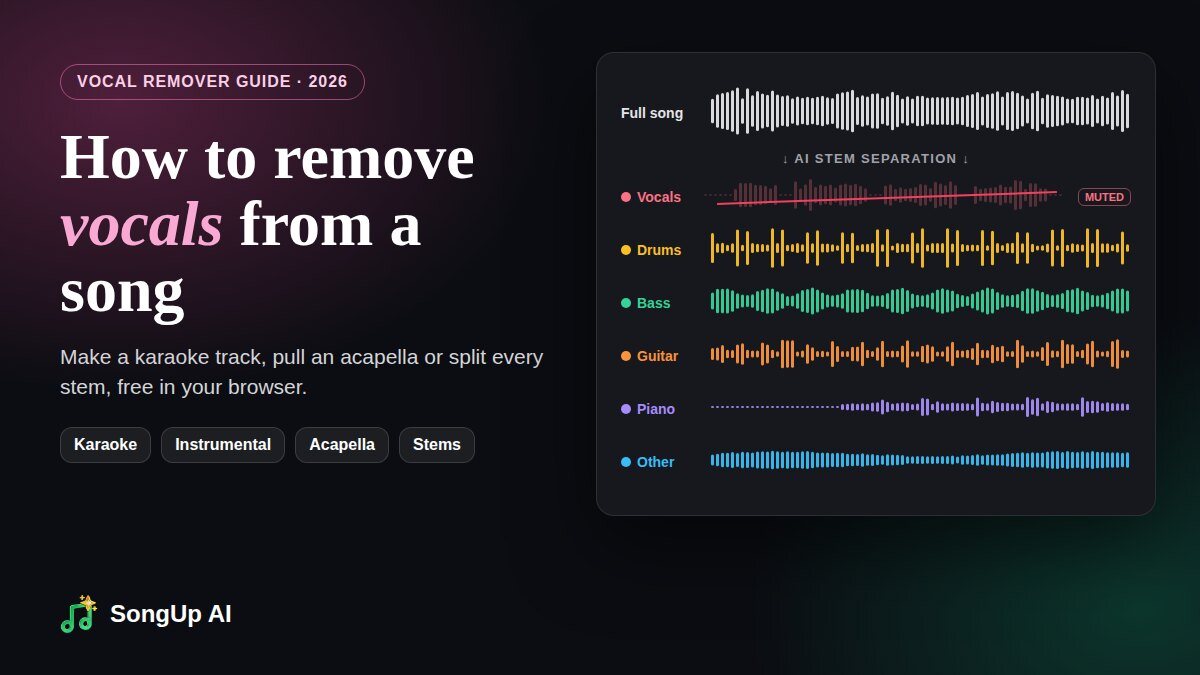
How to remove vocals from a song, in short
- Open a free AI vocal remover such as the SongUp AI Karaoke Maker. It runs in your browser, with no app to install.
- Upload the song (MP3, WAV, M4A or FLAC).
- Click Start Processing. The AI separates the vocals from the music on your own device.
- Download the karaoke track (the instrumental) as a WAV file.
For the vocals only, use the Acapella Extractor. To get drums, bass, guitar and piano on separate tracks, use the Stem Separator.
What removing vocals really means: stems, explained
A finished song is one stereo file: two channels, left and right, with every instrument and voice mixed together. You can't simply delete the singer, because the voice and the guitar share the same frequencies at the same moments. There is no "vocal layer" in an MP3 to switch off.
What a modern vocal remover does is source separation. An AI model listens to the mix and rebuilds each part as its own track, called a stem. The usual stems are:
| Stem | What's in it |
|---|---|
| Vocals | Lead vocal, harmonies, backing vocals, ad-libs |
| Drums | Kick, snare, hi-hats, cymbals, percussion |
| Bass | Bass guitar, synth bass, 808s |
| Other | Everything else: guitars, keys, synths, strings, horns, pads, effects |
| Guitar (6-stem mode) | Acoustic and electric guitar, split out of "other" |
| Piano (6-stem mode) | Piano and keys, split out of "other" |
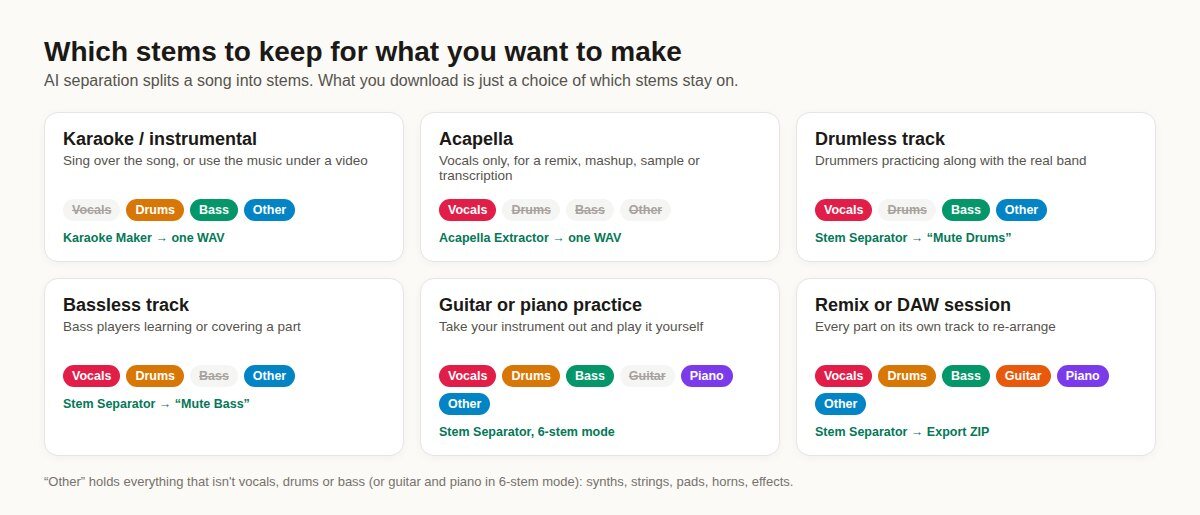
Once a song is split into stems, every request you've typed into Google is just a choice of which stems stay on:
- Remove vocals / make a karaoke version / make an instrumental: keep drums, bass and other. Mute vocals.
- Isolate vocals / make an acapella: keep vocals. Mute everything else.
- Remove drums from a song (drumless track): mute drums.
- Remove bass, guitar or piano: mute that one stem.
How to remove vocals from a song, step by step (free)
Here is the whole process with the free SongUp AI Karaoke Maker, the fastest way to get an instrumental. The screenshots are from the live tool.
Step 1: Open the Karaoke Maker
Go to songupai.com/tools/karaoke-maker in Chrome, Edge, Safari or Firefox, on a computer or a phone. There's nothing to download or install. Your first run works without an account; after that, a free account keeps it free.
Step 2: Upload your song
Drag the file onto the box, or click it to choose one. MP3, WAV, M4A, FLAC and OGG all work. Use the best copy you have: a WAV or a 320 kbps MP3 gives a cleaner instrumental than a low-bitrate download.
Step 3: Click Start Processing
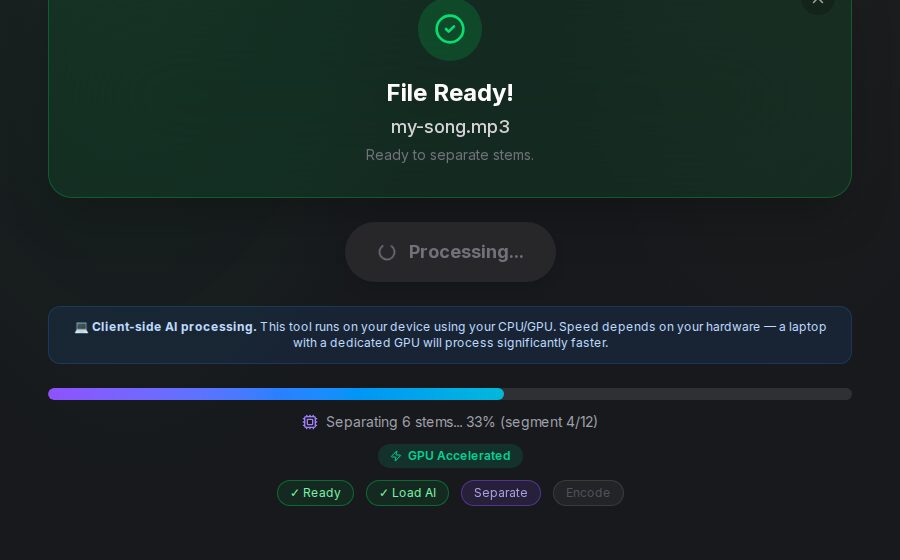
The first time, your browser downloads the AI model (about 172 MB) and saves it. Every later run, in any of the three tools, starts at once from that saved copy. Then the AI separates the song in short overlapping segments and shows its progress. A computer with a modern graphics chip uses GPU acceleration (WebGPU) and finishes fastest. Older devices fall back to the CPU, which is slower but gives the same result.
Step 4: Listen, then download the karaoke track
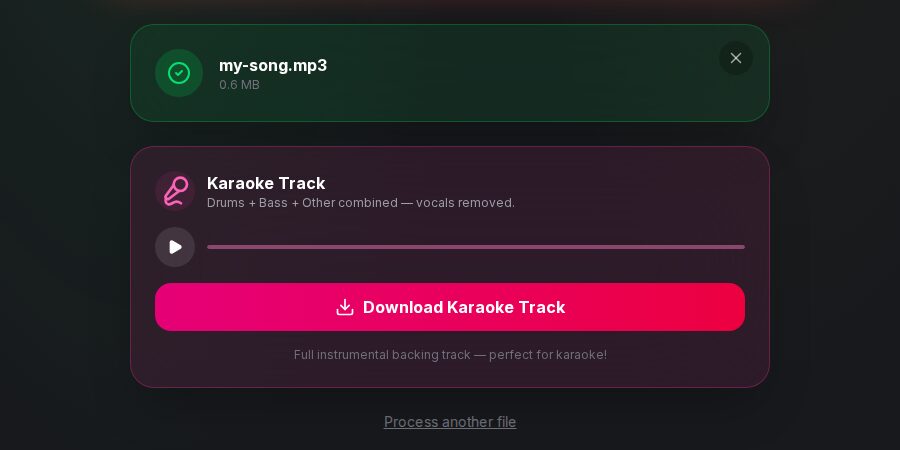
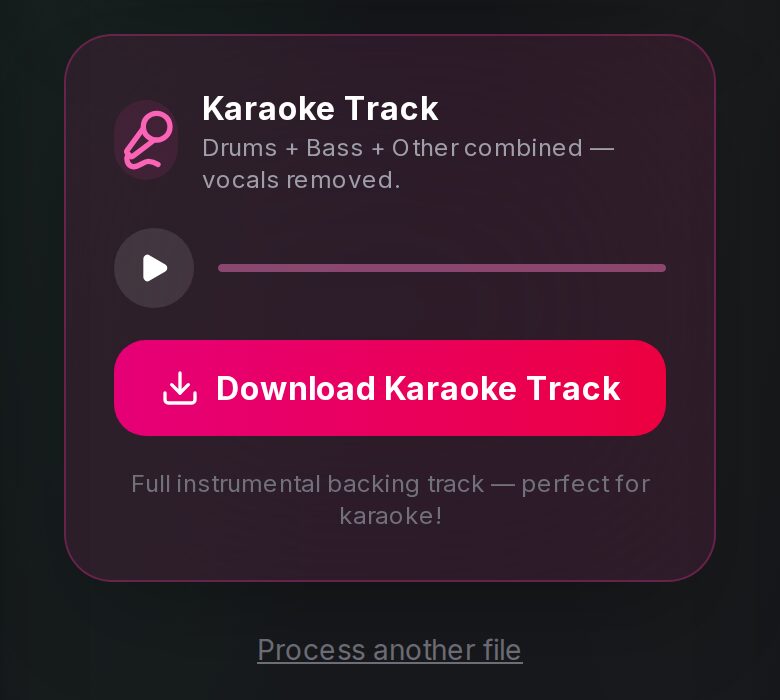
When it's done, press play to check it, then click Download Karaoke Track. You get a full-quality 44.1 kHz WAV file of the drums, bass and every other instrument, with the vocals removed.
That's it. Need it as an MP3? Most video editors, karaoke apps and DAWs take WAV directly, and any audio converter can shrink it.
Why this is private: The model runs in your browser, so your song stays on your own computer or phone. That matters for unreleased demos, client work and voice memos.
How to isolate vocals from a song (make an acapella)
An acapella is the opposite of a karaoke track: the singing with no music. People use acapellas for remixes and mashups, to sample a vocal hook, to study how a singer phrases a line, to write out lyrics, or to clean up a voice recorded over background music.
- Open the Acapella Extractor.
- Upload the song and click Start Processing.
- Download Acapella (Vocals Only) as a WAV.
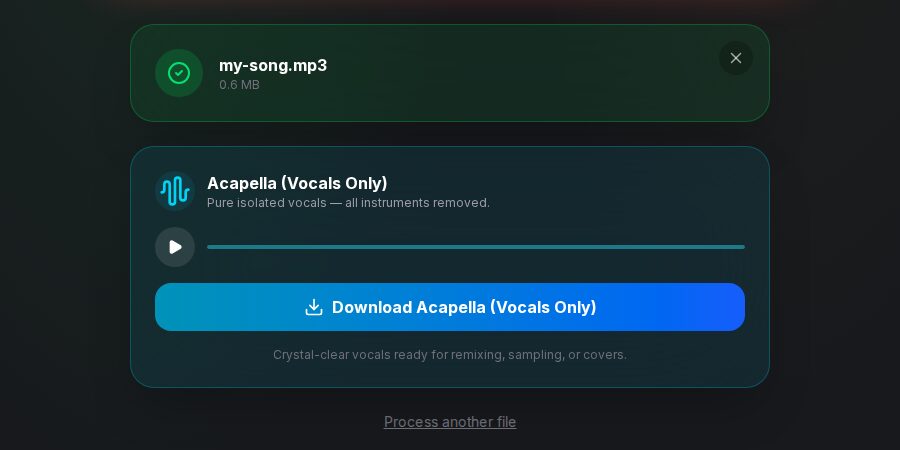
Tip: Isolated vocals often carry a little "air" from the instruments, especially cymbals. Run the acapella through the AI Noise Remover for a cleaner sample. To tighten the pitch on your own vocal, use AI Auto-Tune.
How to split a song into stems (vocals, drums, bass, guitar, piano)
For more than "vocals on or off", use the Stem Separator. It gives you every part on its own track and a mixer to combine them.
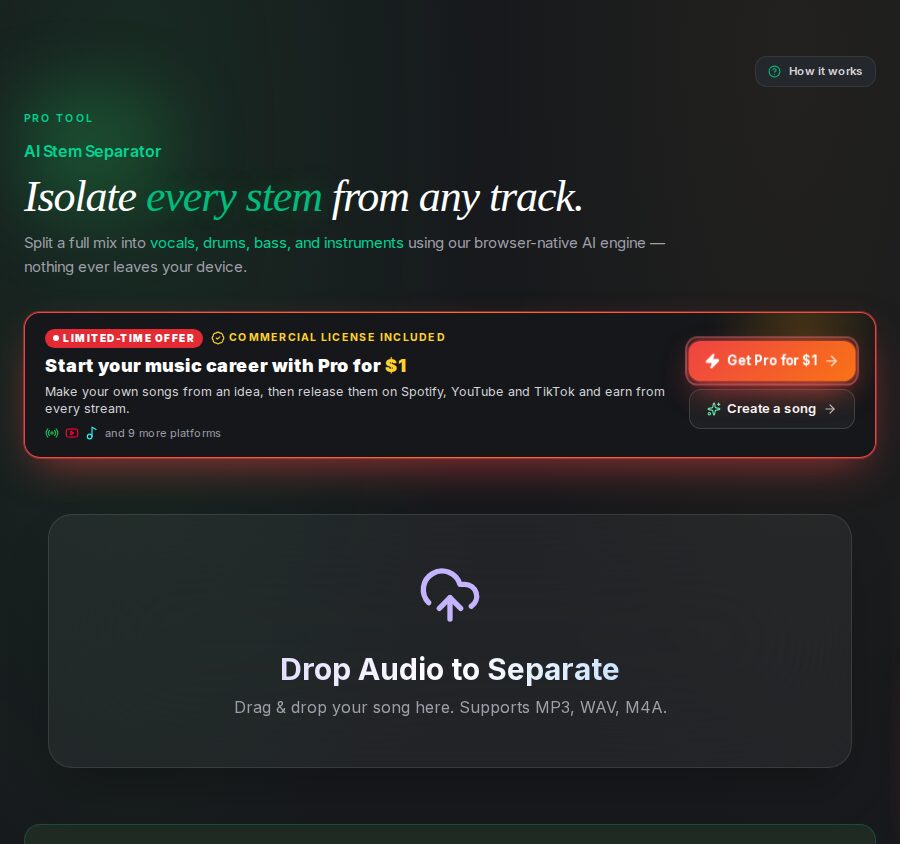
- Open the Stem Separator and upload an MP3, WAV or M4A.
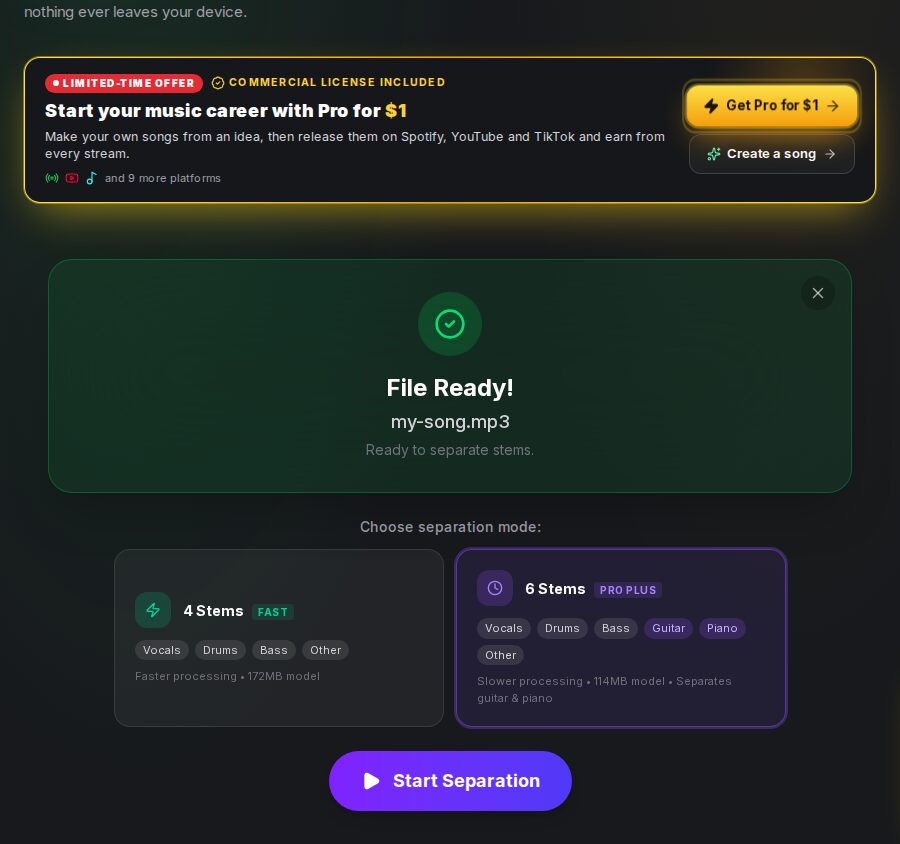
- Choose a mode:
- 4 stems (fast): vocals, drums, bass, other.
- 6 stems: vocals, drums, bass, guitar, piano, other. It's slower, and the tool marks it as a Pro Plus feature.
- Click Start Separation.
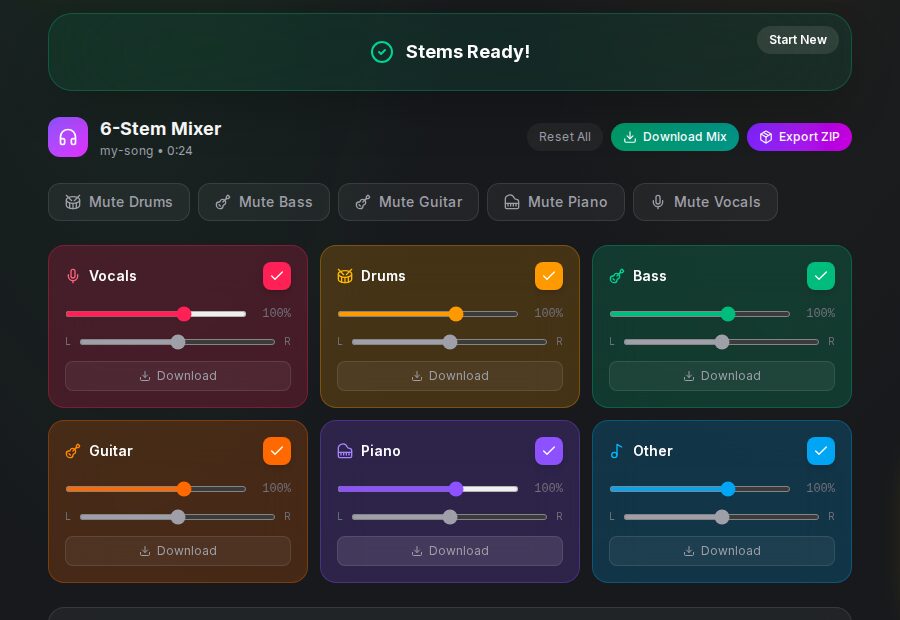
When it's finished you get the stem mixer:
- One-click presets: Mute Vocals (karaoke), Mute Drums (drumless), Mute Bass, Mute Guitar, Mute Piano.
- Per-stem controls: a volume slider and a left/right pan for each stem. Turn the vocals down to 20% while you play along and you have a quiet guide vocal to practice with.
- Download: each stem on its own, Download Mix for the stems you have switched on mixed into one WAV, or Export ZIP for every stem as a separate WAV in one zip named after your song.
4 stems or 6 stems?
Start with 4 stems for karaoke, acapellas, drumless and bassless tracks. It's faster, and vocals, drums and bass come out cleanest. Use 6 stems when you specifically need the guitar or the piano on its own. Guitar usually separates well. Piano is the hardest instrument for any current model, so expect some bleed from other instruments on the piano stem.
How to remove vocals from a song on iPhone, Android or Chromebook
Searching for a vocal remover app? You don't need one. Because the SongUp AI tools run in the browser, the same steps work on a phone:
- Save the song to your Files app (iPhone) or Downloads (Android).
- Open songupai.com/tools/karaoke-maker in Safari or Chrome.
- Tap the upload box, pick the file, and tap Start Processing.
- Tap Download Karaoke Track. It saves as a WAV you can play, share or open in a video editor.
Phones have less memory than computers, so:
- Use Wi-Fi the first time: the AI model is a one-time ~172 MB download.
- Keep the screen on and the tab open while it works.
- Long songs (6+ minutes) or DJ mixes may run out of memory on older phones. Trim the part you need first, or use a computer.
On a Chromebook, it works the same as on any computer. Chrome supports GPU acceleration on most recent models.
Only want to sing along on an iPhone? If you subscribe to Apple Music, Apple Music Sing lets you turn down the vocals on supported songs while they play. It doesn't give you a file, though, so you can't use it for a cover video or a performance.
How to remove vocals in Audacity
Audacity is the free audio editor most guides point to. It has two ways to remove vocals, and it's worth knowing their limits.
Option 1: Vocal Reduction and Isolation (classic, not AI)
- Open the song in Audacity (File → Open).
- Select the whole track (Ctrl+A or Cmd+A).
- Go to Effect → Special → Vocal Reduction and Isolation (the exact menu varies by version).
- Set Action to Remove Vocals and click Apply.
Since Audacity 3.5 this effect is no longer installed by default. You download it as a Nyquist plugin from the Audacity website and add it with Tools → Nyquist Plugin Installer.
This effect doesn't understand music. It removes whatever sits in the center of the stereo field. That works when the vocal is dry and panned dead center. It fails, or damages the song, when:
- the bass, kick and snare are also centered (they usually are), so they get thinner or disappear;
- the vocal has stereo reverb or delay, which stays behind as a ghostly echo;
- backing vocals or doubles are panned left and right, so they stay;
- the file is mono, so there's no stereo difference to work with at all.
Option 2: An AI plugin
Intel's free OpenVINO AI plugins for Audacity add a Music Separation effect based on the same family of AI models used by web vocal removers. Results are far better than the classic effect. But you install Audacity and the plugin package and wait for the models to download, and on most computers it's slower than the browser tools.
Bottom line: For a quick karaoke track, a browser-based AI vocal remover is easier and gives a better result than Audacity's built-in effect. Audacity is useful afterwards, to trim, fade or change the key of the instrumental.
The phase inversion trick (and why it doesn't really work)
You'll still find this classic DIY method in old forum posts:
- Split the stereo song into its left and right channels.
- Invert the phase of one channel.
- Mix them back together into mono.
Anything that is identical in both channels cancels out. Since lead vocals are usually mixed in the center, they mostly disappear. So does everything else in the center, often the bass, kick and snare. You're left with a thin, hollow-sounding, mono "instrumental" with reverb ghosts of the vocal. It's an interesting experiment, but not something you'd sing over in public.
Every way to remove vocals, compared
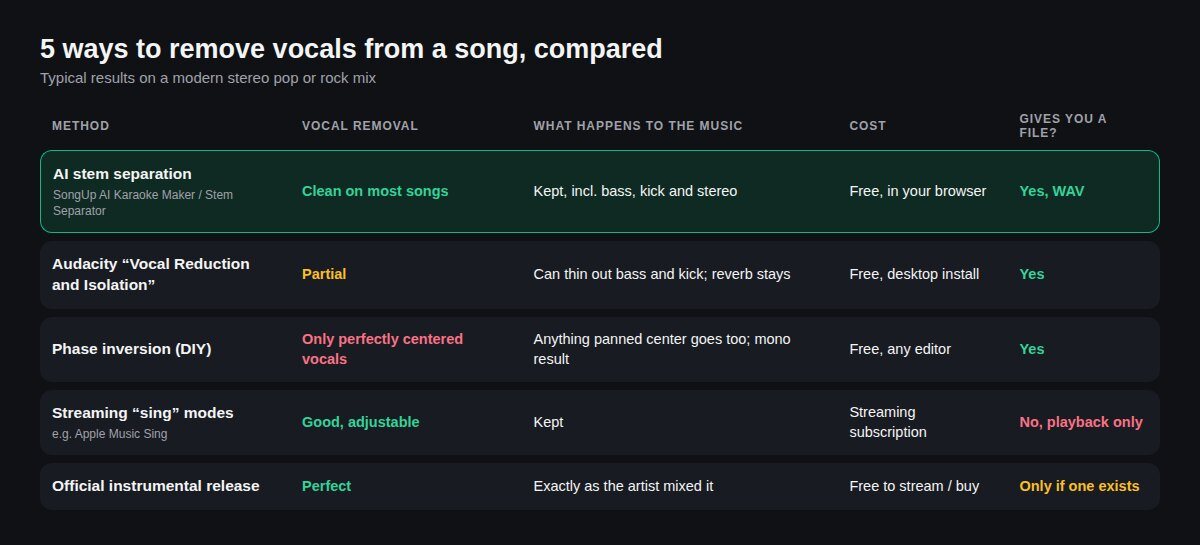
| Method | Quality | Keeps bass and drums? | Cost | You get a file? |
|---|---|---|---|---|
| AI vocal remover in the browser (Karaoke Maker, Stem Separator) | Clean on most songs | Yes | Free | Yes, WAV |
| AI plugin in a desktop editor (Audacity + OpenVINO) | Good | Yes | Free, setup needed | Yes |
| Audacity Vocal Reduction and Isolation | Partial | Often thinned | Free | Yes |
| Phase inversion | Poor | No, center is lost | Free | Yes (mono) |
| Apple Music Sing and other sing modes | Good, adjustable | Yes | Subscription | No |
| Official instrumental or karaoke release | Perfect | Yes | Free to stream, or buy | Only if one exists |
Check for an official instrumental first. Many albums, especially in hip-hop, pop and K-pop, come with official instrumentals on streaming services or YouTube. Search "[song name] instrumental" or "[song name] karaoke". If one exists, it will always beat any vocal remover. If not, AI is the way.
How AI vocal removers work
Nearly every serious vocal remover today, online or desktop, is built on a few open research models. The best-known is Demucs, created at Meta AI Research and released as open source under the MIT license. The SongUp AI tools run HTDemucs (Hybrid Transformer Demucs, version 4), in its 4-stem and 6-stem versions.
How it learned. The model was trained on songs where the separate stems were available. It heard the mix, guessed the stems, compared its guesses with the real ones, and repeated that millions of times. It learned what a voice "looks like" as a sound wave and as a spectrogram (a picture of frequencies over time), and how it differs from a snare or a synth.
Why "hybrid". HTDemucs looks at the song two ways at once: as a raw waveform and as a spectrogram. A transformer, the same kind of neural network behind modern language AI, connects the two views. That's why it handles vocals with reverb, distorted guitars and dense mixes far better than older tools.
How good is it? Researchers score separation with SDR (signal-to-distortion ratio, in decibels; higher is cleaner) on a standard test set called MUSDB18-HQ. HTDemucs v4 scores about 9 dB averaged over all four stems. Spleeter, the 2019 model behind many early "AI vocal remover" apps, scores about 6 dB. Because decibels are logarithmic, three dB is a large difference: you can clearly hear less bleed and fewer "underwater" artifacts.
How it runs in your browser. SongUp AI converted the model to ONNX, a standard format, and runs it with ONNX Runtime Web inside a background worker in your browser tab. It uses your GPU through WebGPU when available and falls back to your CPU (WebAssembly) otherwise. The song is processed in segments of about 8 seconds that overlap and are blended back together, so even long songs fit in memory. Nothing is sent to a server: the model comes to your audio instead of your audio going to the model.
How to get the cleanest instrumental or acapella
AI separation is good, not magic. These tips make a real difference:
- Start with the best source. WAV, FLAC or 320 kbps MP3. Low-bitrate files (128 kbps or less, or ripped from a video) already have compression artifacts, and the separation makes them more obvious.
- Use the studio version. Live recordings have the vocal leaking into every microphone on stage, so some of it always remains.
- Expect harmonies and doubled vocals to separate too. They're vocals, so they go with the vocal stem. If a choir or heavily processed backing vocal remains in the instrumental, try 6-stem mode in the Stem Separator.
- Heavy vocal effects are hardest. Long reverbs, vocoders and vocal chops can leave faint traces, because the model can't always tell if a vocal-chop synth is "voice" or "instrument".
- Mono songs work, but stereo works better. Old recordings in mono separate, just a bit less cleanly.
- Trim first for long files. Separating only the section you need is faster and uses less memory.
- Don't separate twice. Running the instrumental through the remover again rarely helps and adds artifacts.
- Turn the vocal down rather than off for practice. While playing in the stem mixer, a vocal at 15–25% gives you a guide to sing along with.
- Clean the acapella. The Noise Remover takes out leftover hiss and cymbal wash.
- Re-master the result. Removing a loud vocal leaves the mix quieter and a little hollow. A pass through AI Mastering restores loudness and balance.
- Use a desktop for big jobs. For an album or a long DJ mix, a computer with a recent graphics card is many times faster than a phone.
- Use headphones to check. Faint vocal leftovers you can't hear on laptop speakers are obvious on headphones, and on a karaoke PA.
What to do with your instrumental, acapella or stems
- Karaoke night or a sing-along party: play the karaoke track and read the lyrics from your phone.
- Covers for YouTube, TikTok or Instagram: sing over the instrumental, polish your take with AI Auto-Tune, and blend vocal and music with the Smart Auto Mix. Read the copyright section below before you post.
- Learn an instrument: mute your instrument and play along with the real band. Find the chords with the Chord Finder, or turn a bassline or melody into MIDI with Audio to MIDI.
- Remixes and mashups: combine an acapella from one song with an instrumental from another in the Mashup Creator, or chop a vocal hook in the Sampling Tool.
- Transcribe lyrics: an acapella is much easier to listen to than the full mix.
- Rehearsals and live shows: use stems as a backing track, with or without the parts your band plays live.
- School and church performances: sing to the instrumental of a song when no official backing track exists.
Is it legal to remove vocals from a song?
This is the question most guides skip. We're not lawyers, and this isn't legal advice, but here is how it works in the United States:
- Removing vocals for personal use (karaoke at home, practicing, learning a song) is generally not a problem. You're making a private, transformed copy for yourself.
- The instrumental still belongs to the label. Removing the vocals doesn't make the recording yours. The "master" recording, including every instrument you kept, is owned by whoever owns the original recording.
- Posting a cover on YouTube: YouTube has licensing deals with music publishers, so a cover of the song (the composition) is usually allowed. The publisher may monetize it through Content ID. But if you sing over the original instrumental, the label that owns the recording can also claim it, and may monetize, block or take down the video.
- Releasing a cover on Spotify or Apple Music: in the US, you can release a cover of any published song with a mechanical license (the compulsory license in Section 115 of the Copyright Act). Most distributors arrange it for you for a small fee. But the license covers your own recording of the song, not the original instrumental. You'd have to re-record the music, or use an instrumental you have the rights to.
- Selling or distributing an instrumental or acapella of someone else's song, or using it in an ad or a monetized product, needs permission from the owners.
- Remixes: an unofficial remix built from a separated acapella is a derivative work. Posting it publicly without permission can get it removed. Official remix contests are the legitimate route.
Your own songs are different. If you wrote and recorded the song, or made it on a paid SongUp AI plan, the stems are yours to use however you like. Our AI music copyright guide explains commercial use in detail.
Need an instrumental you can actually use? Make your own
If you need music for a video, a podcast, an ad or a release, an instrumental you created yourself avoids every copyright problem above. With SongUp AI you can make:
- Instrumentals and beats: the AI beat maker and the background music generator make music with no vocals, in any genre. See also royalty-free music for YouTube.
- Full songs with vocals, then stems: create a song from an idea or your own lyrics. Every paid song gets Stems: the vocals, drums, bass and the rest as WAV files named after your song. That gives you an official karaoke version and an acapella of a song you own.
- A studio WAV for distributors and editors with WAV download (Pro Plus and above), and a lyric video with the words timed to the singing.
- Your own melody: hum or sing an idea into Hum to Song and get a full arrangement around it.
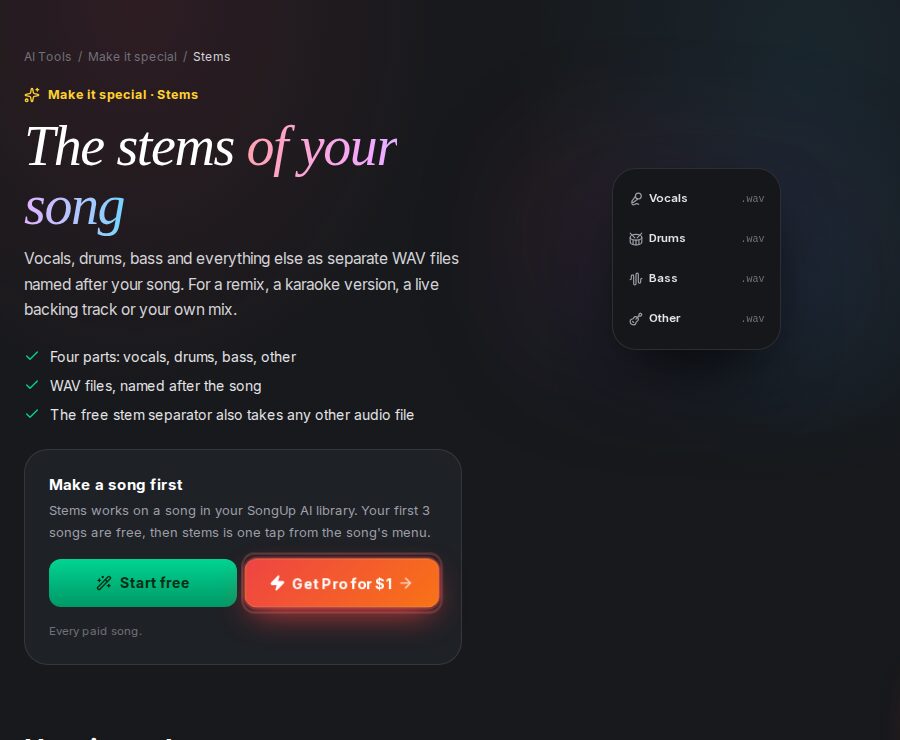
Paid plans start with Pro at $1 for the first month, or you can buy a single song. New to songwriting? Start with our guide on how to write a song or how to make a song with AI. If you're planning to earn from your music, read how to make money with AI music.
Troubleshooting
The model download is stuck or failed. Refresh the page and try again on a stable connection. The download is about 172 MB for the 4-stem model (shared by the Karaoke Maker, the Acapella Extractor and 4-stem mode) and about 114 MB for the 6-stem model. If it keeps failing, clear the site's data in your browser settings to remove a damaged saved copy, then try again.
It's very slow. Your device is running on the CPU. Use an up-to-date Chrome or Edge on a computer with a recent graphics chip so WebGPU acceleration kicks in, and close other heavy tabs.
"Out of memory", or the tab crashed. The song is too long for the device's memory. Trim it, or use a computer instead of a phone.
I can still hear the singer faintly. That's usually reverb, backing vocals, or a low-quality source. Try a better copy of the song, try 6-stem mode, or turn the instrumental's mid-range down slightly in an editor.
It sounds "watery" or swirly. Those are separation artifacts, most common on low-bitrate MP3s and very dense mixes. A lossless source helps most.
My video file won't upload. The tools take audio files. Export or convert the audio track from your video first (most video editors can save just the audio), then upload the MP3 or WAV.
The tool asks me to sign up. Each tool gives one free run without an account. Make a free account to keep using it.
Frequently asked questions about removing vocals
How do I remove vocals from a song for free?
Upload the song to a free AI vocal remover such as the SongUp AI Karaoke Maker, click Start Processing, and download the instrumental as a WAV. It runs in your browser, with no software to install. For more control, the Stem Separator splits every part.
What is the best free vocal remover?
Look for one built on a modern AI model (HTDemucs or similar), that gives you a lossless WAV and that doesn't make you upload your song to a server. The SongUp AI Karaoke Maker, Acapella Extractor and Stem Separator do all three. For an overview of AI music tools, see the best AI music generators.
How do I make a karaoke version of a song?
Remove the vocals with the Karaoke Maker and download the karaoke track. Then play it while reading the lyrics. To sing over your own original song instead, create it with the AI song generator and use its stems.
How do I make an instrumental of a song?
An instrumental is the song with the vocals removed: use the Karaoke Maker, or the Stem Separator and the "Mute Vocals" preset. To make a brand-new instrumental, use the AI beat maker.
How do I get the acapella of a song?
Upload it to the Acapella Extractor and download "Acapella (Vocals Only)". Clean leftover hiss with the Noise Remover.
Can I remove vocals from a song on my iPhone or Android?
Yes. Open songupai.com/tools/karaoke-maker in Safari or Chrome, upload the song from Files or Downloads, and download the karaoke track. No app is needed. Use Wi-Fi for the one-time model download.
Do I need to upload my song to a server?
Not with SongUp AI. The vocal remover tools run the AI model inside your browser, so the song stays on your device. Many other online vocal removers upload your file to their servers.
Can I remove the drums, guitar or piano instead of the vocals?
Yes. In the Stem Separator, use Mute Drums or Mute Bass in 4-stem mode, or Mute Guitar or Mute Piano in 6-stem mode. Then click Download Mix.
Why can I still hear some vocals?
Reverb, backing vocals, live recordings and low-bitrate files are the usual causes. Use the best-quality copy you have, try 6-stem mode, and see the tips for a cleaner result.
Is it legal to remove vocals from a song?
For personal use, like karaoke at home or practicing, generally yes. Publishing or selling the instrumental or acapella of someone else's recording needs the owners' permission. Covers on YouTube may be claimed by the label. Read our AI music copyright guide.
Can I use a karaoke track for a YouTube cover?
You can upload a cover, but if you sing over the original instrumental, the owner of the recording can claim, monetize or block the video. To avoid that, use an instrumental you have rights to, such as one you make with AI or the stems of your own song.
Does Audacity remove vocals?
Its Vocal Reduction and Isolation effect removes sound in the center of the stereo mix, which also thins the bass and drums and leaves reverb behind. Since Audacity 3.5 it's a separate plugin download. AI tools like the Karaoke Maker give far cleaner results.
What file formats can I use?
The Karaoke Maker and Acapella Extractor take MP3, WAV, M4A, FLAC and OGG; the Stem Separator takes MP3, WAV and M4A. All three give you 44.1 kHz WAV files. To convert or polish the result, try AI Mastering.
How long does it take to remove vocals?
From under a minute to several minutes for a typical song. It depends on your device and the song's length. The first run also downloads the AI model once. Computers with WebGPU support are fastest.
Can I get the stems of a song I made with AI?
Yes. On SongUp AI, every paid song includes Stems: vocals, drums, bass and other as WAV files. See all the song extras or read the SongUp AI review for what each plan includes.
The bottom line
Removing vocals from a song used to mean muddy phase tricks. Now it takes three clicks and a few minutes. For a karaoke track or an instrumental, use the Karaoke Maker. For vocals only, use the Acapella Extractor. For every part on its own track, use the Stem Separator. All three are free, run in your browser and never upload your song.
When you need music you can post, release or sell without worrying about copyright, make your own: create a song with SongUp AI, and take its stems with you.